Technique
Twenty years of wear. One editable material.
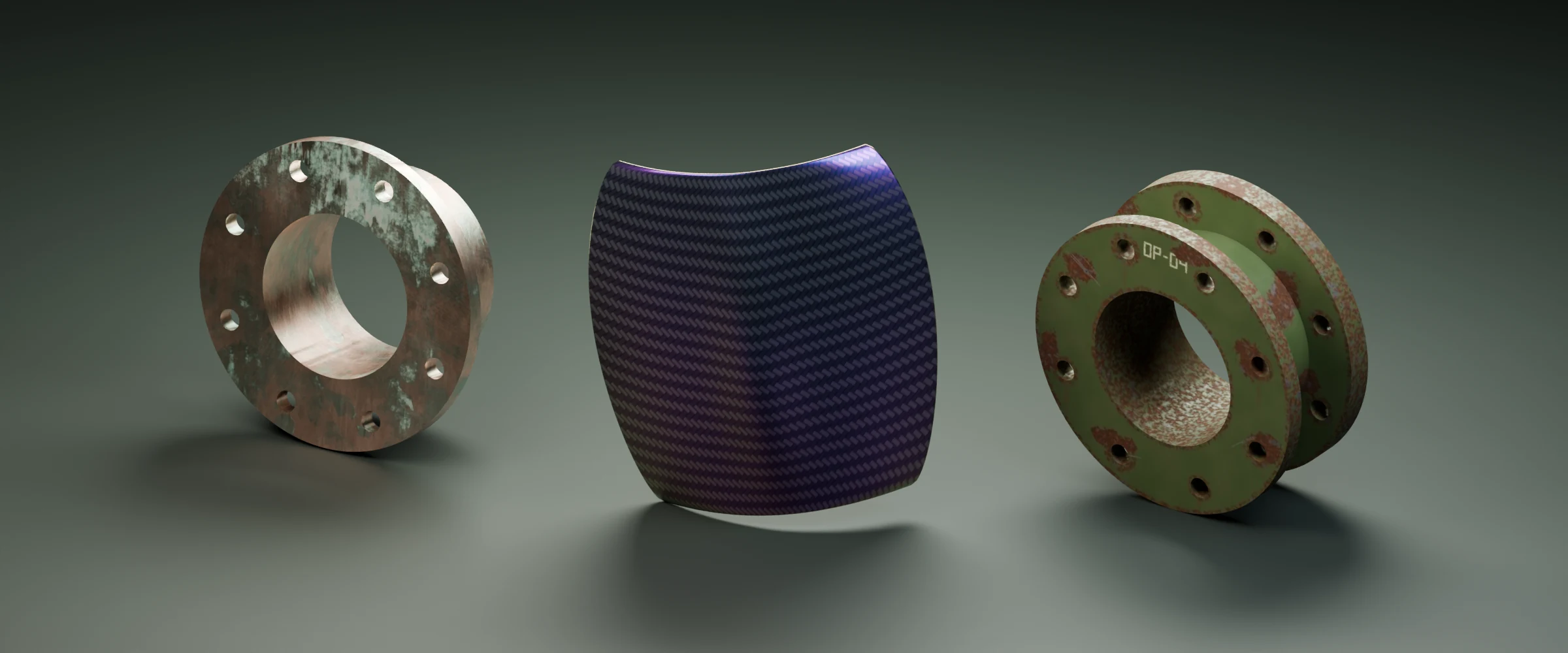
Give a Blender material an age, an environment and a maintenance history. Shape fading, corrosion and coating loss with Open Painter’s editable Material Aging.
In this article
Twenty years in a dry workshop. Twenty years beside the sea. The same machine could reach the same age with a completely different face. Paint fades, coatings break, exposed metal corrodes, and regular care leaves its own evidence.
Open Painter’s Material Aging lets you author that history in Blender. Choose what the object is made of, where it has been, how it was used and when it was maintained. Turn those choices into an editable material, then push the result toward the image you want.
Start with the layers that time will reveal
A chip in painted steel can reveal primer before it reaches metal. Copper develops a different surface from timber. A protective coating changes what happens underneath it. Those relationships give aging something specific to work on.
In Material Aging, choose a Material Construction: the substrate, conversion coating, primer, paint and top coat that make up your object. Set its starting coating condition, or begin from a catalog material that initializes the construction for you.
Open Painter uses that construction to build material-specific changes. A painted steel machine can lose gloss, fade and expose its substrate through coating damage. Your starting choices shape which changes belong on the surface and which layers they affect.
Give the object somewhere to have been
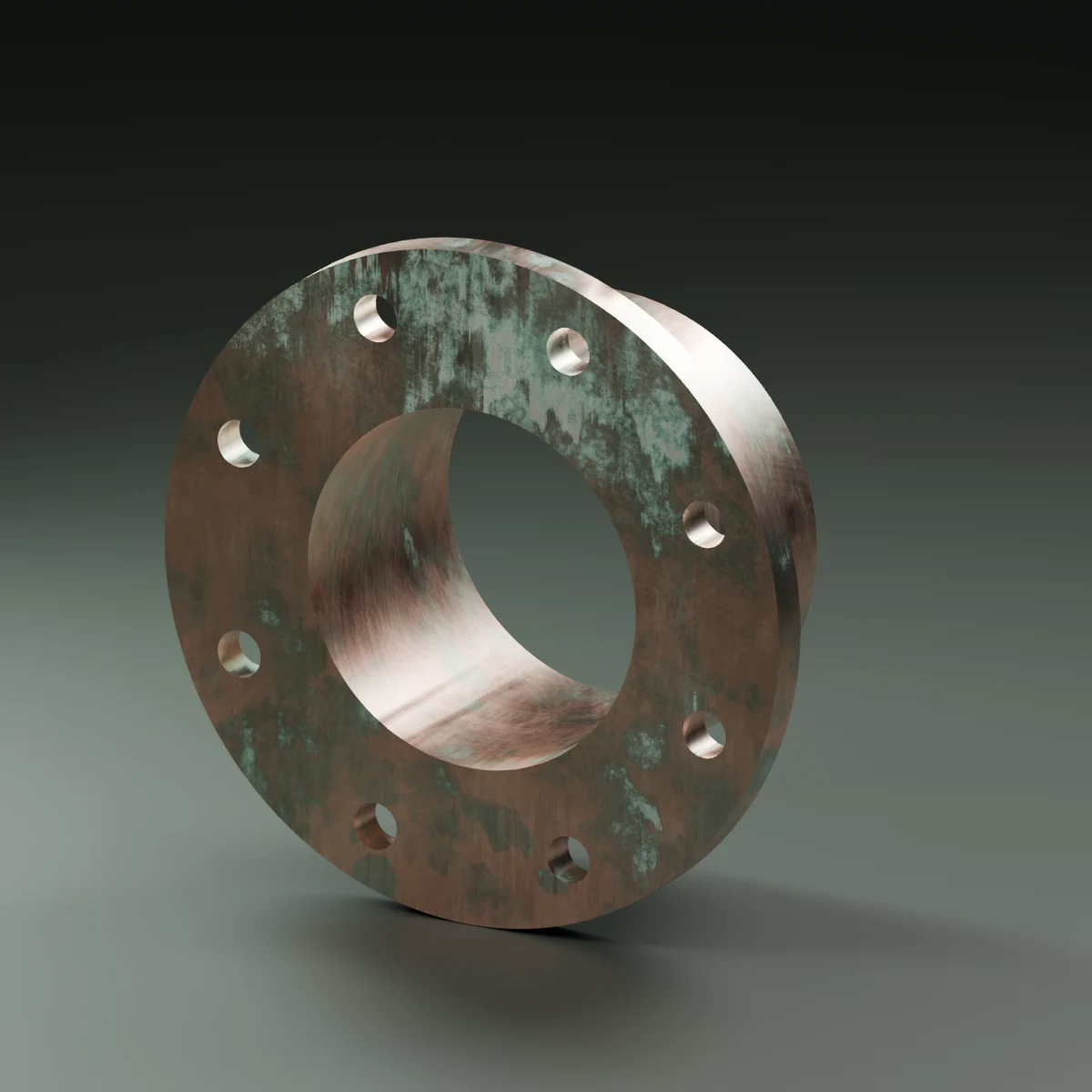
Choose an environment such as Indoor, Coastal or Industrial, then set Age in Years. Exposure controls let you shape the conditions around the object. A sheltered wall fixture and an exposed dockside machine can share a coastal setting while carrying different amounts of wear.
Bake AO and Curvature, then click Age Material. Position and World Normal maps add information for placement related to height and orientation. You get an aging folder whose layers you can inspect, with changes to the finish driven by the construction and exposure you chose.
Work from the camera as you tune it. Let broad fading and coating loss establish the age, then use finer corrosion and deposits to reward a closer look. These are procedural controls for authoring appearance: the final judgment is how well the surface tells your story.
A repaint can change the whole story
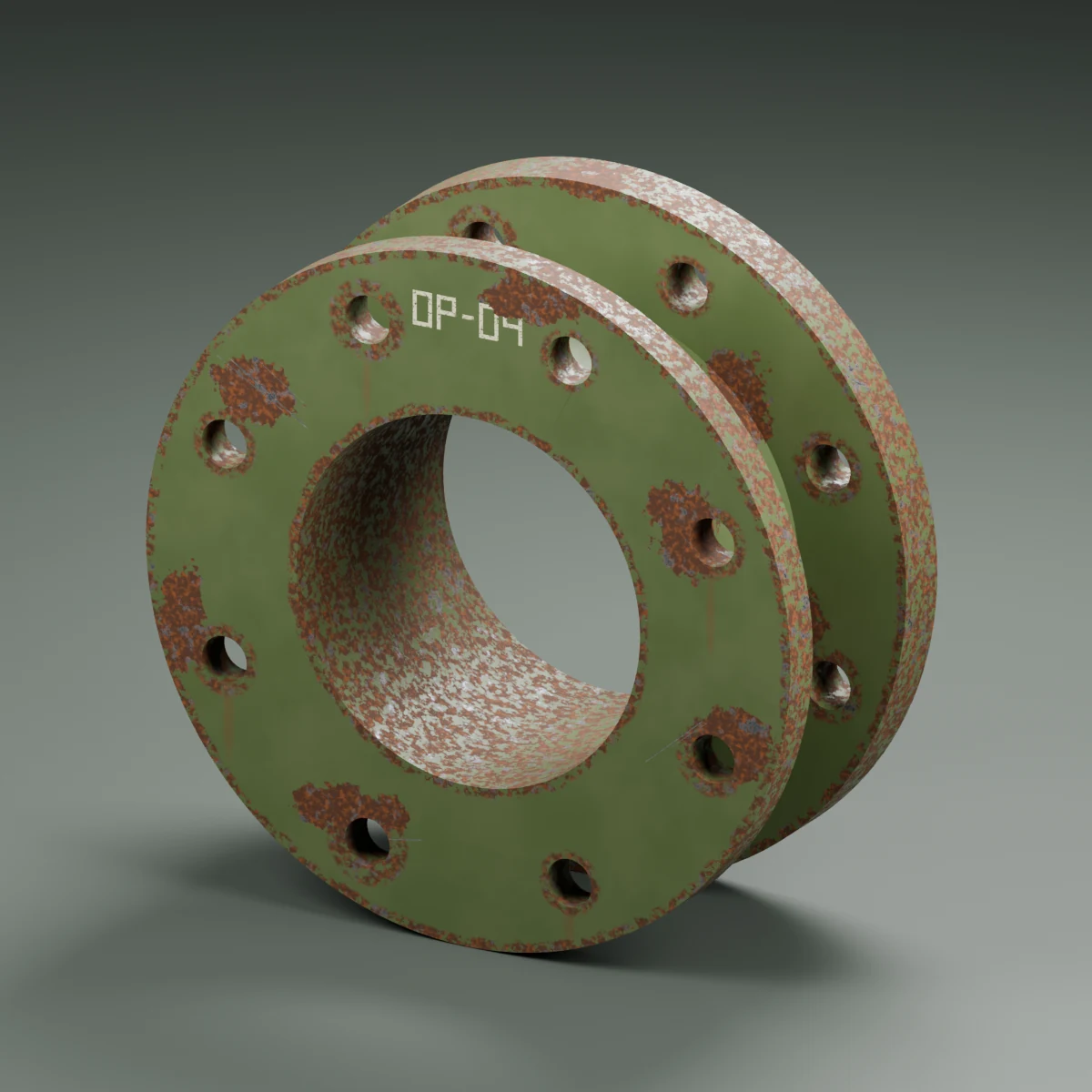
Imagine a machine that spent its first years indoors, moved outside, and received a fresh coat of paint before being put back to work. A single, uniform wear treatment would miss the interesting part: its newest finish sits on an older object.
Environment History lets you compose periods with their own exposure, usage and maintenance. Add dated events such as Repaint, Clean, Rust Removal or Polish. Their order matters, and events beyond the current age have not happened yet.
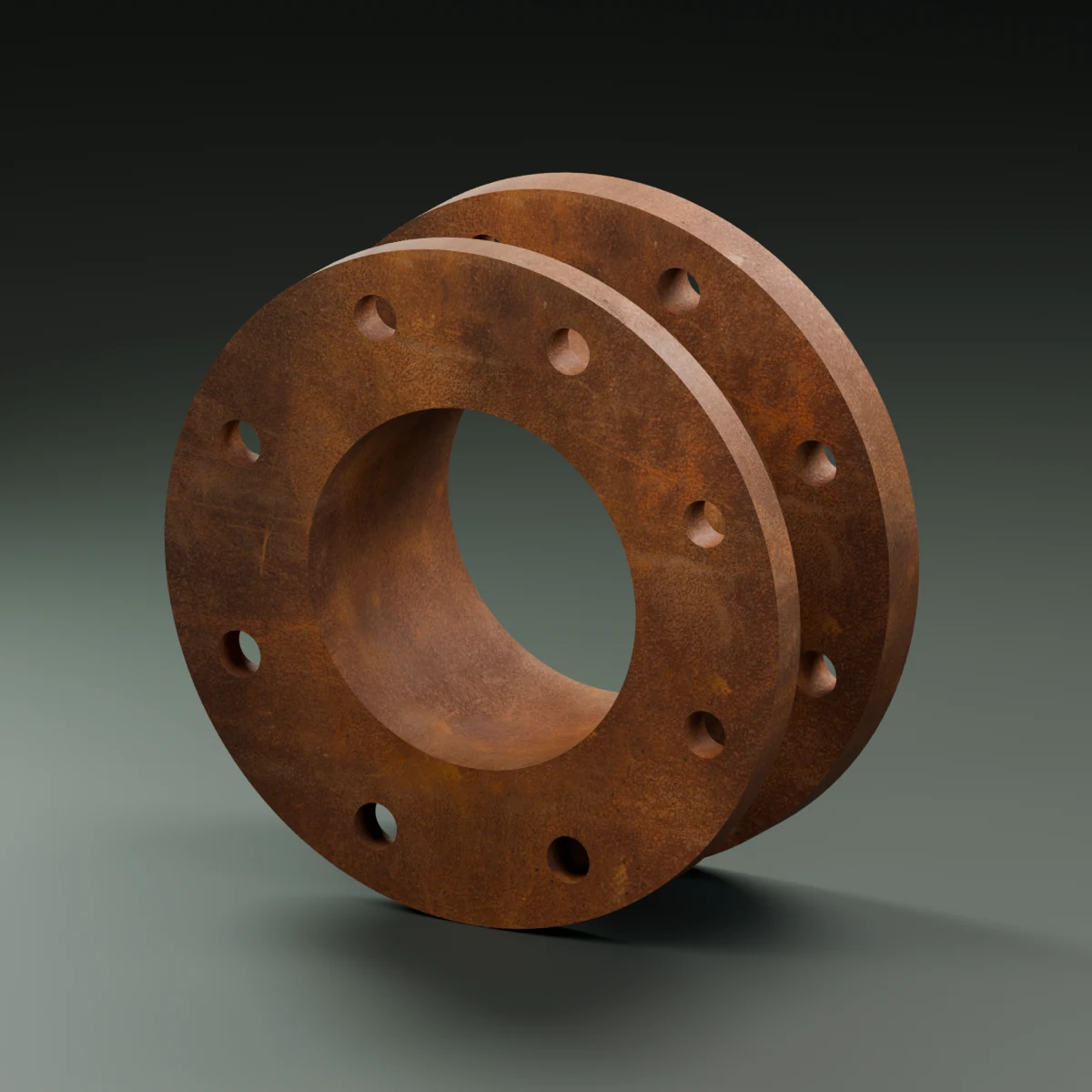
That gives you a way to make related assets feel individually used. One machine was cleaned regularly. Another was neglected. A third was refurbished late in its life. Keep the same underlying construction and change the history to explore those versions.
Give two identical objects different lives.
Keep the last word on the finish
The aging result is an editable folder of layers and masks. Follow Edits Live updates it as you change the settings; Re-age gives you an explicit update when live edits are off. Open the folder in the layer panel or inspect its layers, masks and filters in Open Graph, the built-in node editor. Follow a mask into the layer it affects and adjust the controls with the surface in view.
Use the Art Direction controls to amplify or quiet Corrosion, Fading, Damage and Dirt. A hero prop may need stronger contrast to read through its lighting. A maintained object may keep its age in the faded coating while carrying much less dirt. The controls let you shape those decisions directly.
Ordinary re-aging preserves recognized manual overrides. Keep distinctive hand-painted finishing layers outside the aging folder if you plan to use Rebuild Folder or change its construction: rebuilding replaces that generated folder and its contents. The aging guide explains the update and reset controls.
Put time on the timeline
Age in Years can be keyframed. A finish can change across a shot: a fresh machine becomes weathered, an old surface reaches a maintenance event, or a sequence reveals the same object at different points in its life.
Keep the camera and lighting consistent while you develop the transition. You can judge the surface change itself, refine its timing in Blender and adjust the material without moving the effect into another application.
For shots that come close, geometry effects can follow aging outcomes to place flakes, moss or other detail where the material calls for them. Shape, surface and time can contribute to the same image.
Begin with one construction and one environment. Give it twenty years, add a maintenance event, and watch how the finish changes. Then make the decisions only you can make: where the audience should look, what the object should suggest, and which parts of its history deserve to remain visible.

Written by Open Painter
We build Open Painter so you can paint, age and finish materials in the Blender scenes you create.Give your next material a life.
Build the surface, choose its history and direct the finish. Material Aging is part of Open Painter.
Get Open Painter Installation guide